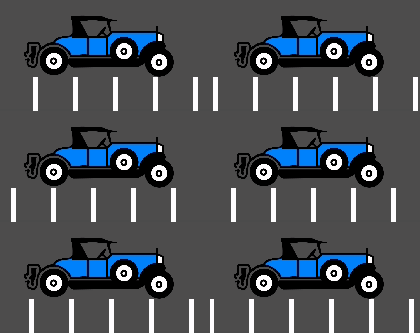
Jitter y stutter son dos alteraciones diferentes en el movimiento visible de objetos en la pantalla que pueden afectar a un juego, incluso cuando se ejecuta a velocidad completa. Estos efectos son principalmente visibles en juegos donde el mundo se mueve a una velocidad constante en una dirección fija, como juegos de carreras o plataformas.
Input lag is unrelated to jitter and stutter, but is sometimes discussed alongside. Input lag refers to visible on-screen delay when performing actions with the mouse, keyboard, controller or touchscreen. It can be related to game code, engine code or external factors (such as hardware). Input lag is most noticeable in games that use the mouse to aim, such as first-person games. Input lag can't be completely eliminated, but it can be reduced in several ways.
Un juego que se ejecute a una velocidad de fotogramas normal sin mostrar ningún efecto va a parecer fluido:
Un juego que presenta jitter se sacudirá constantemente de manera muy sutil:
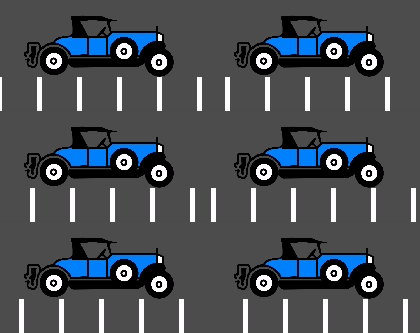
Finalmente, un juego que presenta stutter parecerá suave, pero dará la impresión de detenerse o retroceder un fotograma cada pocos segundos:
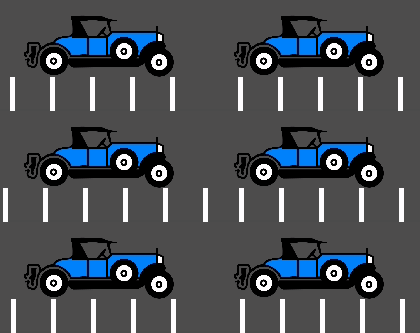
There can be many causes of jitter. The most typical one happens when the game physics frequency (usually 60 Hz) runs at a different resolution than the monitor refresh rate. Check whether your monitor refresh rate is different from 60 Hz.
Sometimes, only some objects appear to jitter (character or background). This happens when they are processed in different time sources (one is processed in the physics step while another is processed in the idle step).
This cause of jitter can be alleviated by enabling physics interpolation in the Project Settings. Physics interpolation will smooth out physics updates by interpolating the transforms of physics objects between physics frames. This way, the visual representation of physics objects will always look smooth no matter the framerate and physics tick rate.
Enabling physics interpolation has some caveats you should be aware of. For example, care should be taken when teleporting objects so that they don't visibly interpolate between the old position and new position when it's not intended. See the Physics Interpolation documentation for details.
Nota
Enabling physics interpolation will increase input lag for behavior that depends on the physics tick, such as player movement. In most games, this is generally preferable to jitter, but consider this carefully for games that operate on a fixed framerate (like fighting or rhythm games). This increase in input lag can be compensated by increasing the physics tick rate as described in the Input lag section.
Stutter may happen due to several different reasons. One reason is the game not being able to keep full framerate performance due to a CPU or GPU bottleneck. Solving this is game-specific and will require optimization.